How To Create Your Own Gmail Theme

Gmail, like many aspects of your Chromebook, PC or Mac, can be customized to suit your liking and personality.  While some find the simple white background that comes standard in the web-based email service, I for one am not a big fan of leaving things generic.  I like having a little color and more specifically, I like having things that match across all my devices.  Themes and wallpapers are part of that but so is Gmail for me.  My current favorite wallpaper is the default wallpaper that comes with Android Marshmallow.  It is the wallpaper on both my Nexus 6 and Nexus 7 as well as the wallpaper on my Chromebook and my Windows PC.  Now it is also the wallpaper for my Gmail account.
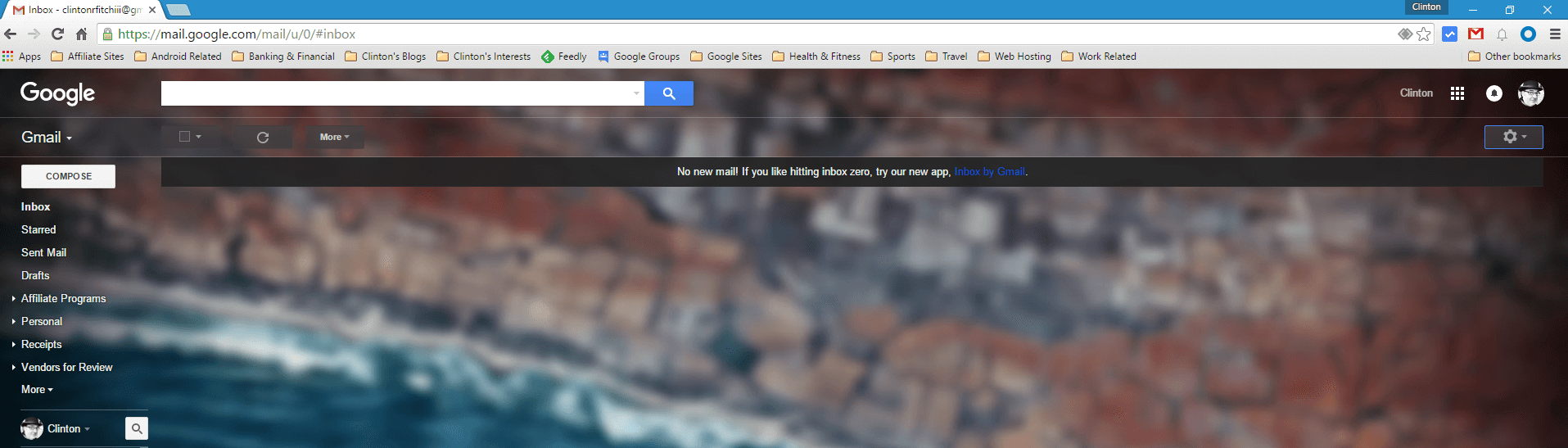
My Gmail Android Marshmallow Background

My Gmail Android Marshmallow Background

To be clear, in this How To I am talking about Gmail on the web, not the Android app.  Whether you are using Chrome, Internet Explorer or Safari, you can have a theme for your Gmail account in just a few simple steps.  First, make sure you have the photo that you want to use as your wallpaper saved somewhere on your PC or on Google Drive so you can access it.  Once you have that done, continue on after the break to see how to set it up, configure & customize it and finally share it with anyone.


Project Fi Domestic Roaming – The Ins and Outs

While the concept of Project Fi is to provide users with the option of two carriers, T-Mobile and Sprint, there could be a time and place in the US where neither carrier has sufficient coverage. It is rare but it could happen. In that case, what happens to your Nexus phone on Fi? The news is actually really good both from a coverage and price perspective.

Keep in mind that if you are connected to Wi-Fi and it is strong enough, you can still take and make calls.  Last month I posted an article on how to tell if your calls are happening over Wi-Fi so you can refer to that for more details.  But assuming that you don’t even have that available, Fi kicks in to “Domestic Roaming”.  That means that it will use whatever carrier is available to get you connected to make those calls.  In my research of this topic, there have been multiple Fi users who have reported that when T-Mobile or Sprint was not available, their Nexus devices connected to AT&T or Verizon for coverage.  This happened automatically for those users who had roaming enabled (Settings>More>Cellular Networks on your device).

I should be clear that I personally have not experienced or used Domestic Roaming.  In all of my travels I have always had T-Mobile or Sprint available to me.

So what does that cost you as a Project Fi users if you happen to go onto the AT&T or Verizon network?  Absolutely nothing.

Review of The Zagg Auto-Fit Folio

As users of Android and Windows based tablets continue to demand more productivity from their devices, accessories like Bluetooth keyboards equally are seeing a rise in usage. We see things like folio-style keyboards that essentially serve as a case and keyboard for your tablet all in the effort of providing a physical keyboard while not adding much bulk or adding a measure of protection. One of the best at providing that functionality as well as protection is the Zagg Auto-Fit Folio

Designed to fit 7″, 8″ or 10″ tablets, the Zagg auto-fit Folio uses a spring-loaded mechanism to hold your tablet in place while giving you a comfortable and very responsive keyboard that you connect to your tablet via Bluetooth. Add to that, the keyboard is folio-style case that has a hard outer shell to provide protection for your tablet while it is inside the keyboard case.

I recently received one of the Zagg Folio’s to try out with my Nexus 7 and having used it heavily in that time (in fact, this review is being written on it), I have to say it is one of the best Bluetooth keyboards I have used. It has solid performance, responsive typing and key action and is simply to setup all while not adding a huge amount of bulk to a slim tablet. This product is certainly one I can recommend with confidence.

The Top 10 Most Read Articles From 2015

2015 was a breakout year for ClintonFitch.com and I have you to thank. Thank you for reading the posts, commenting here, on Twitter and Google+ and for following. Without you, there really would be no point to the site.

I have been running this site since 2004 and while it has gone through many iterations, every year I look back to see what caught your eye over the course of a year. 2015 is no exception.  I like looking back as it gives me an idea of what you want to see out of the site and the content you find most valuable.  Ultimately that is want I want to provide to readers.  With that then, here are the top 10 most read articles from 2015.

#10 Most Read Article in 2015: Real Racing 3 Gets A Massive Porsche Update And New Daily Rewards (July)

Just a month after its big Le Mans update, Real Racing 3 has received another massive update that brings a host of new features, cars and tracks.  If you are a Porsche fan, you will just love this update!  Even if you aren’t, the new daily reward system is much improved for those who play the racing sim daily and want to race against your friends?  It’s easy now with the Android Party Play functionality built into the game.

#9 Most Read Article in 2015: Real Racing 3 Gets a Massive NASCAR Update (June)

You peeps like your Real Racing! 🙂

Arguably one of the best mobile racing simulators available today is Real Racing 3. It has outstanding graphics and game controls and the FireMonkey team over at EA Sports are continually adding to the game, bringing more tracks and more cars. Now, finally, it has NASCAR.

Review of Signal Spy – A Powerful Fi Tool

If you have been reading my site for the past few months, you know that I recently switched over to Project Fi after being an AT&T customer for over 17 years. You can read my review of Project Fi here but you can find all of my Project Fi related tips, tricks and How To’s at this link.  One of the key advantages of the service is the ability to switch between T-Mobile and Sprint, the two providers that make up Google’s MNVO (Mobile Network Virtual Operator).  In principle, the way it works is that whichever carrier has the stronger signal in your area is the one you will connect to but as you travel, you may switch from Sprint to T-Mobile or vise-versa.  The challenge is that you never really know which network you are on at any given moment and that fact, along with several other key features, is why Signal Spy is a must have app for Fi users.

Signal Spy is an app you may have heard of before as it was know as Fi Spy up until a few weeks ago after what I think was a discussion between the developer Novvia and Google’s legal team. 🙂  The name aside, Signal Spy gives Fi users the ability to not only see what carrier they happen to be using but also what LTE band they are using with that carrier, their Wi-Fi information (if connected) and the ability to force your Nexus device to switch from one carrier to another.  I have been using the app for several weeks now (I’m part of their beta program) and now that it is out and available for everyone, it should be an app that Fi users download right after the Project Fi app itself.  Even if you are not on Fi, you can still get some really useful information out of Signal Spy that makes it worth the download for anyone.

For the purpose of this review I am going to assume that you are a Project Fi user so I can explain all the features and usefulness of the app.  If you are a non-Fi user, keep in mind that your mileage will vary on what you can see in the app.

Signal Spy – Free (In-App Donation) – Download Now

%d bloggers like this: