Category: Android

Google Home Update Brings Dedicated Listen Tab

Google Home for Android has been updated with a new Listen tab that makes it easier to find curated music streams across a wide range of services.  The app itself was updated last week but the new Listen tab has now been enabled on the back end.  If you don’t see it yet, don’t fret.  It will be there over the course of the next few days.  Once you have it, you will be able to see music streams from the likes of Spotify and Google Play Music that you can listen to at any time.  You will also get recommendation for apps that can be used by Google Home for music streaming.

The new Listen tab also gives you recommendations of artists and music streams based on your listening habits.  This is a great way to discover new music but also rediscover an old favorite from the past.
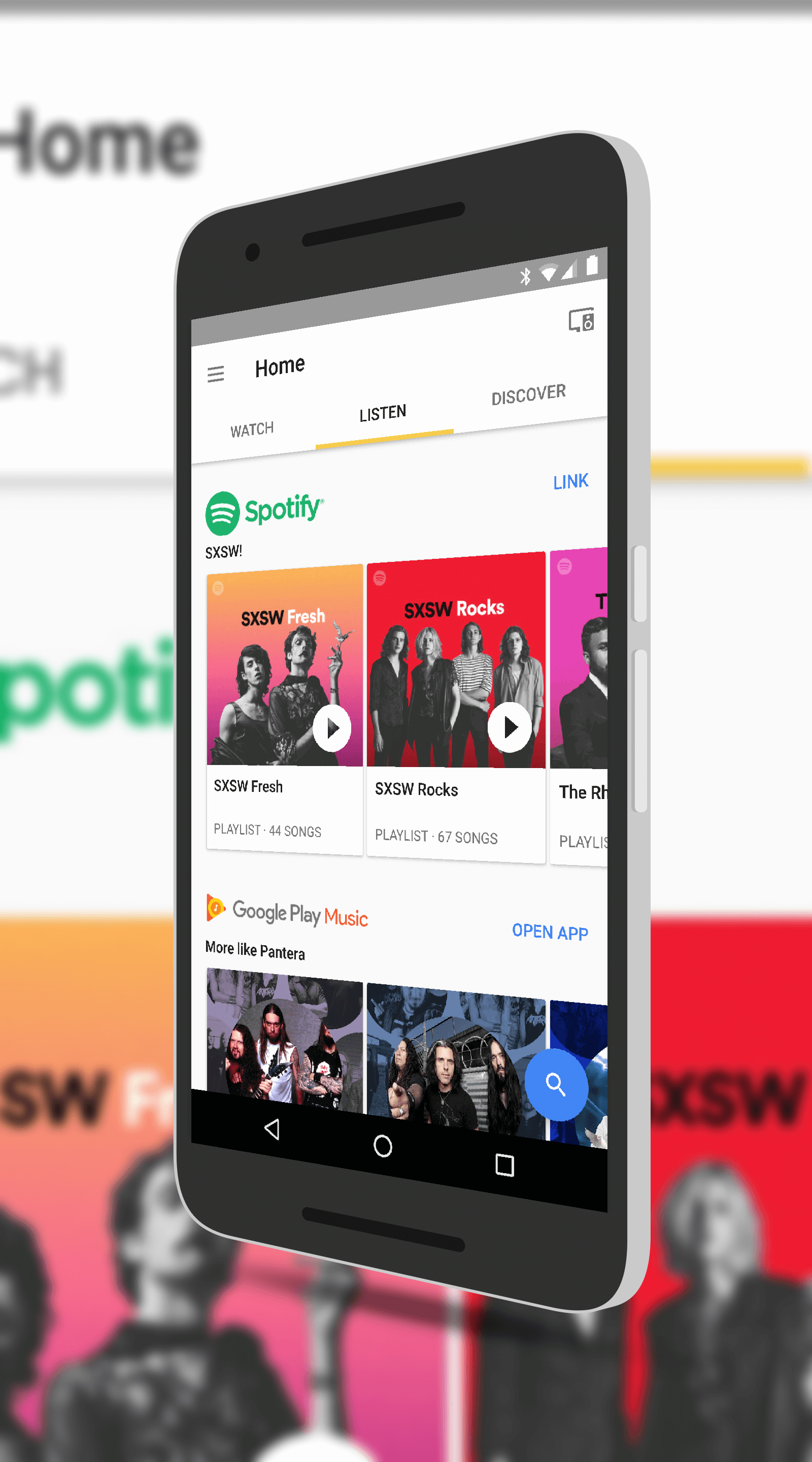
Listen Tab in Google Home

Listen Tab in Google Home

Google’s drive is to make it easier to find streaming music.  With so many options, having the ability to scan a single tab in the Home app makes things easier and faster for you.  If you have accounts with Spotify and Google Play Music, you will be able to open those apps from within the Home app to get to the music stream easily but you can also play them from within the Home app too.
 

Today’s Deal – SanDisk Ultra MicroSD Cards Starting at $12

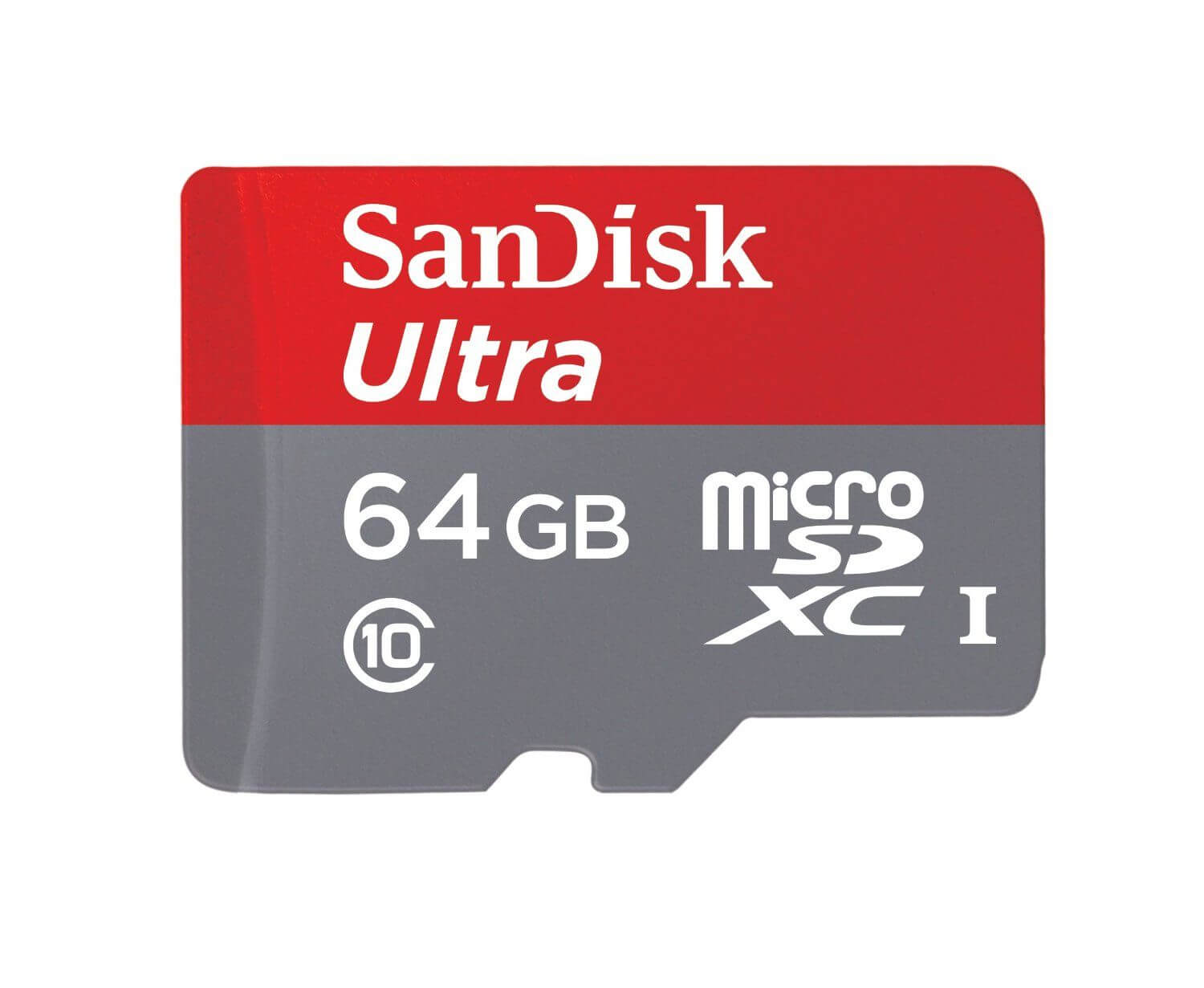
Today’s Deal is on a wide range of SanDisk Ultra Class 10 MicroSD storage cards.  These high speed and highly reliable cards are great from Android devices as well as other devices (like Go Pro’s) for your storage needs.  Today there are a several that are on sale at Amazon starting at 32GB and going all the way up to 256GB of storage.

All of these cards are waterproof, shockproof, and magnet proof so they are going to stand the test of time.

As always, make sure you check your phone or other device for the maximum capacity it can read before you purchase one of these SanDisk cards.  Most mid-market and flagship devices can handle

SanDisk 64GB MicroSD Card

SanDisk 64GB MicroSD Card

128GB or even 256GB but lower costs devices may only be able to handle a 32Gb or 64GB card.  Just check your device’s specs before you order.  If you over order on size, the card will likely still work but you won’t get the full capacity – thus you paid too much!

The sale on these SanDisk cards is throughout the day and all of them are eligible for Amazon Prime free 2-day shipping.

Send Money to Friends and Family via Gmail

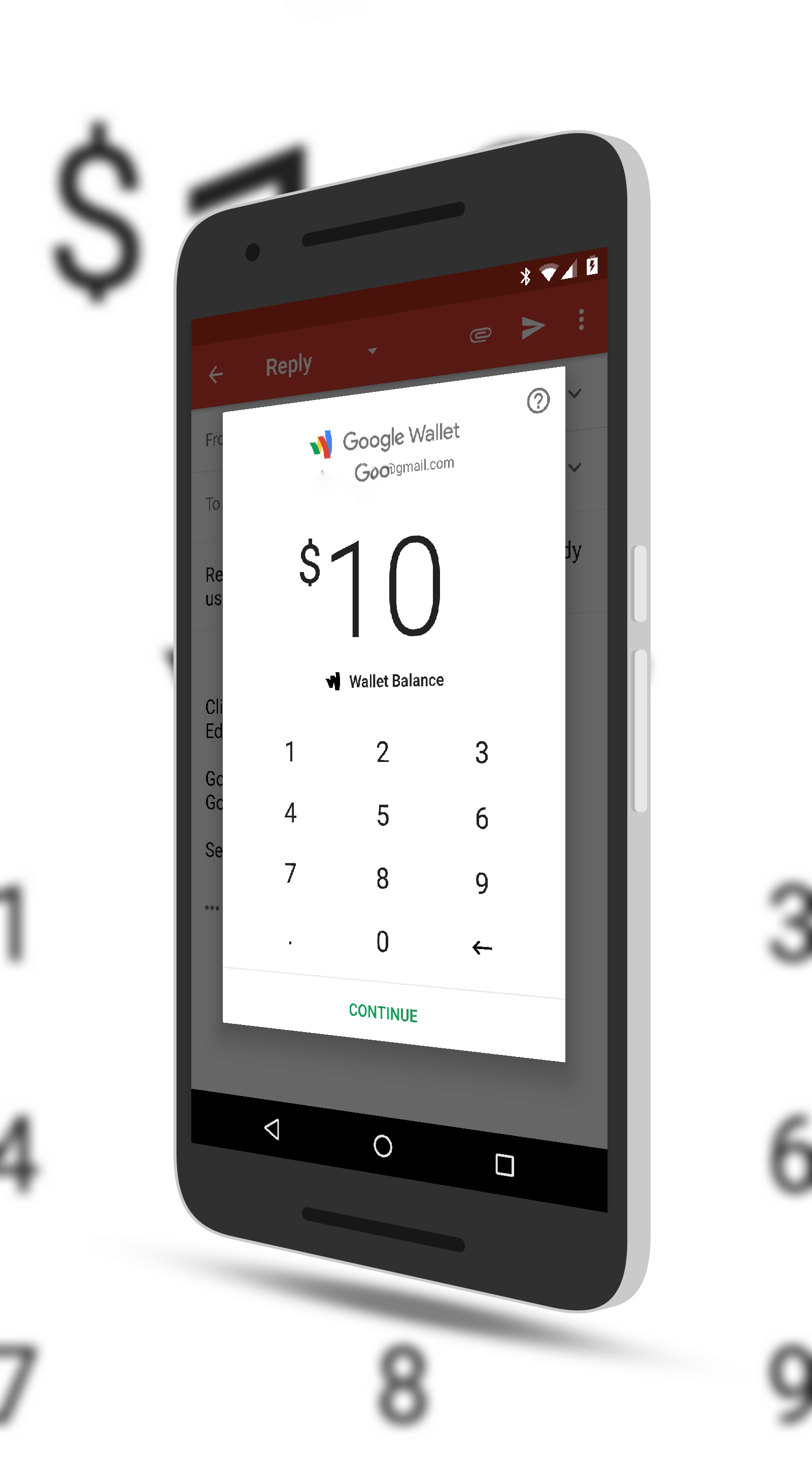
Google has rolled out the ability to send friends and family funds via Gmail on your Android phone.  The update requires the latest version of Gmail (which rolled out last week) but the ability is a back-end change that Google has enabled.  The ability to send funds is something that has been on the Gmail web portal for a while now and having it added to the Android version just makes it that much easier to use.

How it works is pretty straightforward.  When you are composing an email to another Gmail user, tapping the attachment icon (the paperclip icon) will give you the option to send money.  This will pop-up a page that allows you to type in the amount of money which can then be sent from your Google Wallet to the recipient.  On their end, they simply accept the transfer in the email sent to them and they can have it added to their Google

Send Money in Gmail

Send Money in Gmail

Wallet or transferred to their bank account if they have it configured.

There are some catches to this as you may have figured out.  First, it only works to other Gmail recipients.  You can’t, for example, send mail to a friend on Exchange or Outlook.com.  Second, this update is tied to your Google Wallet so you will need to fund that wallet in some way.  This is usually just tying your Wallet to a credit card.  Finally, this update is for Android only.  iOS users don’t have this functionality yet.


Microsoft Officially Brings Tablet Support in Arrow Launcher

Last month I told you about the latest beta of Microsoft’s Arrow Launcher bringing support for Android tablets.  That support is now official.  The latest update to the popular launcher is rolling out in the Play Store now and with it comes support for tablets along with a handful of other updates & tweaks.  The support of tablets is something that long time Arrow users have requested of Microsoft as it gives a uniform experience across their devices.

Along with with, Arrow Launcher also supports horizontal layout for your apps page from the app drawer.  This is primarily aimed at tablets and it is an option that needs to be enabled.  The backup & restore feature also has more backup options available.  It still backs everything up to OneDrive but you can now have it save things like SMS messages too.

Microsoft Arrow Launcher on a Nexus 9

Microsoft Arrow Launcher on a Nexus 9

The utility page, something that was introduced in the last update to the app, can also be configured in this new release.  You can show it or hide it as well as chose if you want the card to be transparent or white.  For those who may have tried Arrow Launcher in the past, the utility page is now where you find things like your recent contacts, your recent documents and other information.  These all use to be separate pages in the launcher so having them all in once place makes life a bit easier.

If you have Arrow Launcher installed on your phone, you should get the update to the latest build over the course of the next few days.  Unless you are in the beta, you will need to go to the Play Store to install it on your tablet.

Today’s Deal – Anker PowerCore Slim 5000 Battery Pack for $19

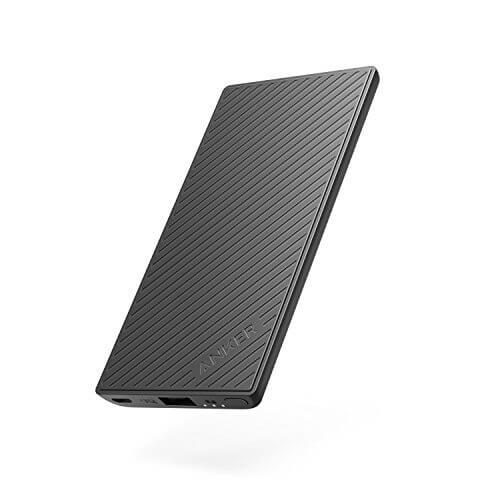
Today’s Deal is on another great accessory from Anker.  The PowerCore Slim 5000 is a 5000mAh battery pack that, as the name suggests, is a slim design that is actually smaller than most phones.  Right now this battery pack is down to $19 on Amazon, 62% off the regular price of $31.  The pack has one USB port to connect your Android phone or iPhone to for charging and is rated to give a full charge to a Samsung Galaxy and iPhone 7 Plus one full charge while smaller devices such as the Nexus 5X or iPhone 7 could get two charges out of it.  The pack comes with Anker’s PowerIQ

Anker PowerCore Slim 5000

Anker PowerCore Slim 5000

technology to give a smooth, consistent charge to your devices, making it both save and efficient in the charging process.

Anker designed this pack to be held in your hand along with your phone so if you are on the go, you can still hold your phone and work as the pack doesn’t make everything feel big and bulky.  The pack is also coated in silicone so it won’t scratch up your devices and gives it a smooth feel that is easier to grip than aluminum designed packs.  There are LED indicators to let you know when your phone is charging and when you are done, it easily slips into a pocket or handbag.

Like all Anker products, the PowerCore Slim 5000 comes with an 18-month warranty against any defects and issues and, since this deal is through Amazon, you have a 30 day hassle free refund policy (which is now extended through the holidays).

Head over to Amazon to get more details and to order yours.  It is Amazon Prime eligible for members.

AT&T Just Now Rolling Out The February Android Security Update to Some Devices

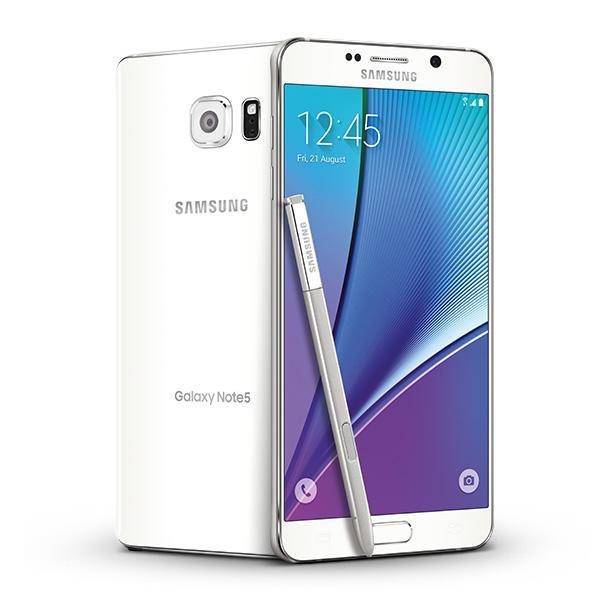
With the March Android Security Update rolling out, February’s update is just now being rolled out by AT&T to some Samsung devices.  The update for the Galaxy Note 4, Note 5 and S5 Active are just now hitting customers. The updates themselves are quite small, under 200MB, and only contain the security update changes & fixes.  To put things into perspective, T-Mobile released the February Android Security Update for the Note 5 on their network on February 1st, the day the patch was released.

The challenge of upgrades and security patches is a well trodden road that we don’t need to visit yet again.  But it speaks volumes of the problem facing the platform when one carrier is releasing a security patch some 5 weeks after it was originally released.

Samsung Galaxy Note 5

Samsung Galaxy Note 5

The update for these devices shouldn’t take long to download given their size.  Once you have the download completed, your will need to reboot your device to apply the update which, all in, should take about 20 minutes to get done.  For reference, the build numbers for the updates are as follows:

  • Galaxy Note 4 – MMB29M.N910AUCS2EPK4
  • Galaxy Note 5 – MMB29K.N920AUCS4CQB2
  • Galaxy S5 Active  – MMB29M.G870AUCS2DPK5

Unless you just absolutely have to do so, I strongly encourage readers to avoid carrier locked devices from any carrier.  Updates tend to be much slower from carriers while unlocked devices from manufactures, as a general rule, will get updates faster.  That doesn’t always hold 100% true but close enough.  Obviously devices from Google like the Pixel and Nexus phones get updates the quickest.

Bing Update Brings Improved Local Travel Results

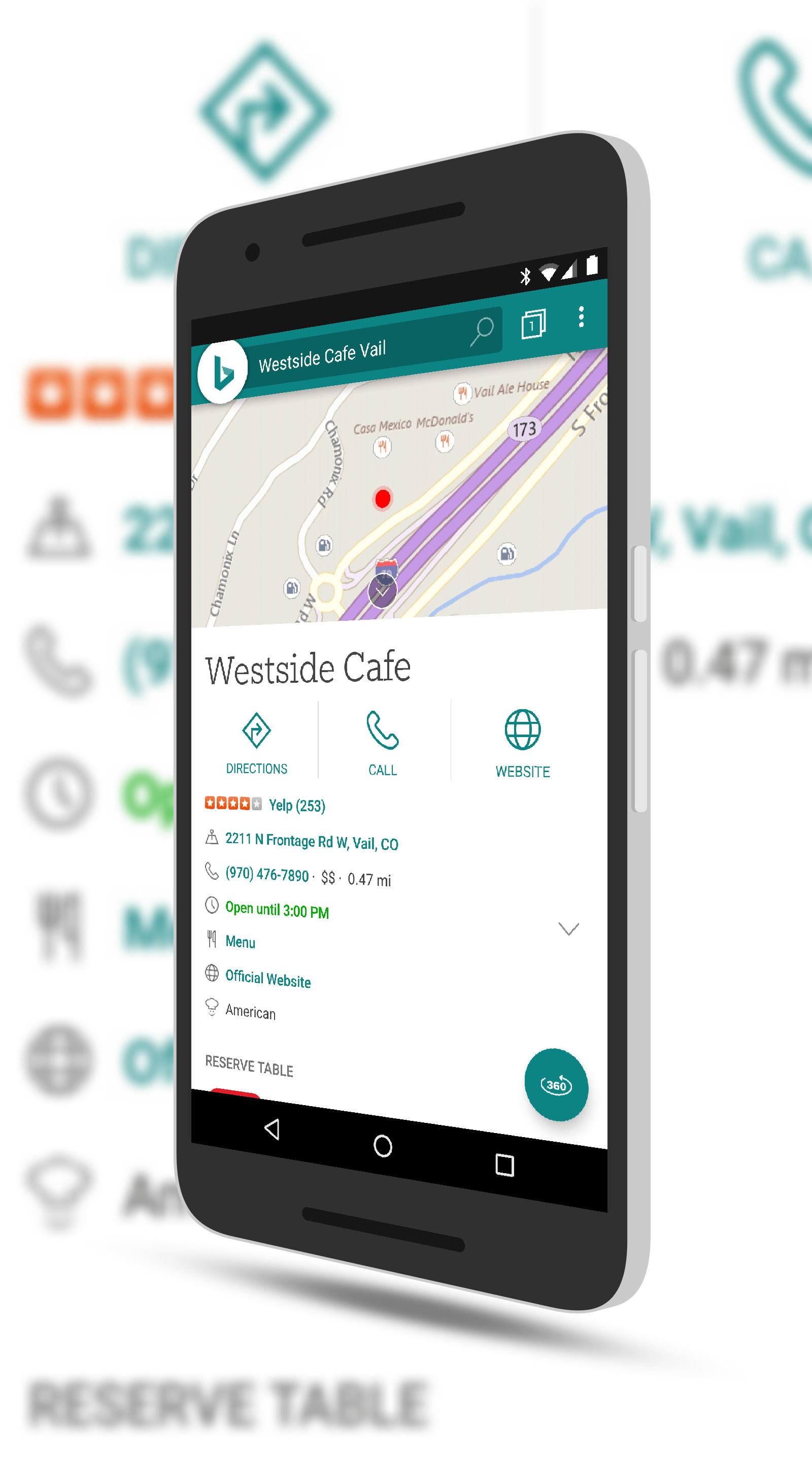
Microsoft has begun rolling out a nice update to their Bing search app for Android.  The update brings improvements around the travel results for places to go and the best time to go to those places.  This is very similar to Google search which has a bar graph that shows you when a location is busiest.  Along with the improved time suggestions, the app also gives you tips and guides and one-tap directions to the location from your current location.

While those of you who use Google search may give a shrug of the shoulders at this being added to Bing but for those who depend on the Microsoft

Bing Local Travel Results

Bing Local Travel Results

search solution, this is certainly good news.  Bing has continued to make solid strides in the search space over the past two years and while it is certainly behind Google in overall usage, those who are deeply tied in to the Microsoft ecosystem continue to leverage it for their search needs.

In addition to the new location information, this update also gives warning about malicious websites and has a homepage gallery filer.  This feature allows you to filter and find your favorite Bing homepage images.  If you haven’t checked out the daily images from the site, you are missing a treat.  Some of them are spectacular.

If you have the app installed then you can expect the update to hit your phone over the course of the next few days.

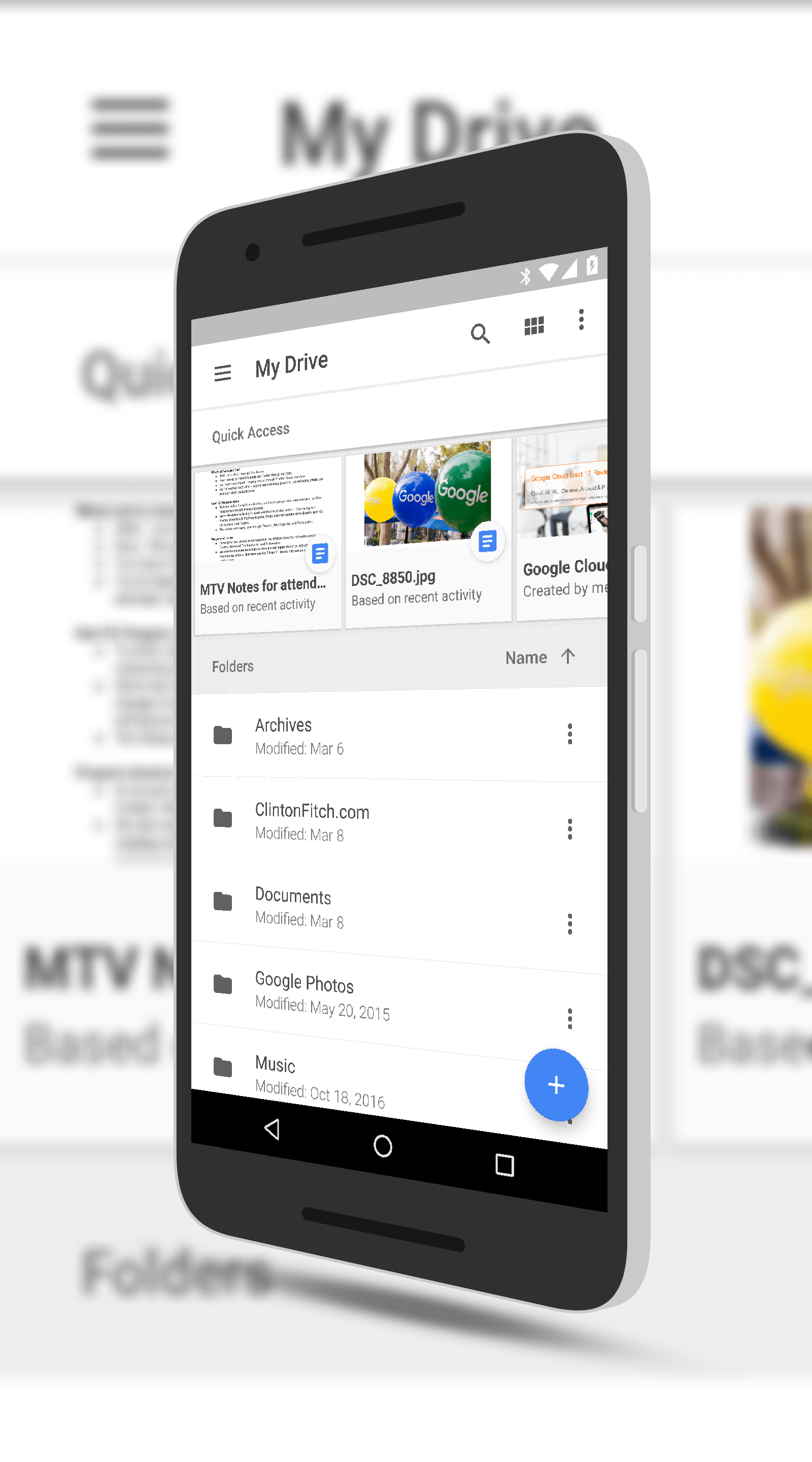
Google Drive Adds Machine Learning-Backed Quick Access

Google has rolled out an update to Google Drive that brings a new, Machine Learning-backed Quick Access panel to the app.  Machine Learning is something that Google is rapidly deploying in all of their products, from G Suite to Google Cloud Platform.  The good news is that everyday users can also gain the advantages of ML in the everyday apps they provide.

This feature rolled out a few months ago for those who are G Suite customers and principally what it does is use a wide set of patterns to determine the files you need to access quickly.  This isn’t just your most recent files as that’s fairly mundane these days.  No, this looks at things like your calendar or activity on your Drive to bubble up the files you are likely to need.

Google Drive Quick Access

Google Drive Quick Access

For Quick Access, however, we constructed thousands of simple features from the various signals above (for instance, the timestamps of the last 20 edit events on a document would constitute 20 simple input features), and combined them with the power of deep neural networks to learn from the aggregated activity of our users. By using deep neural networks we were able to develop accurate predictive models with simpler features and less feature engineering effort.

It is a pretty impressive model and frankly, it works just as impressively.  Looking at a meeting I had on my calendar, it bubbled up a Docs file that I had been using for notes around this particular meeting.  I didn’t have to search for it.  As you use Drive and other Google apps like G Suite (which includes the likes of Gmail, Calendar and of course Docs, Sheets and Slides), it will learn you better to give you more personalized results.

For Quick Access to work in Google Drive, you need to have the latest version of the app on your phone or tablet.  The feature should be enabled by default but if not, you can go into Setting to enable it (or disable it). You can read more about it on the Google Research Blog.

%d bloggers like this: