Category: Google

Google Calendar Adds Smart Suggestions and 30 Languages

Google Calendar for Android has received a nice update that brings a new smart suggestions feature that makes creating new events quicker and easier than ever.  The update is rolling out to the Google Play Store now and is version 5.3.3 for those keeping score at home.

The new smart suggestions make creating a new calendar event quickly by giving you suggestions based on what you are typing.  So for example, if you start typing “din” it will come up with the suggestion “Dinner” or “Dinner with mom” and then you can tap on that to add it to the event name.  But it goes further.  You can add the location when you see the “at” option appear and you can add people when you see the “With”.  While it is only supported in English currently, you can also use the “on” feature to add a date and time to the event.  All of this is done with literally a few taps instead of having to type every. single. word.
Google Calendar for Android – Free – Download Now

Google Ending My Tracks Support in April 2016

While the news shouldn’t come as a huge surprise to many, Google announced that as of April 30th of this year, their exercise mapping app My Tracks will no longer be available.  The app, which allowed you to track your run, walk or biking activities and display them in Google Maps, never really caught the imagination of users and faced stiff competition for other apps that provided more detailed information on users activities.

After April 30, 2016, My Tracks will no longer be available. We apologize for the inconvenience this might cause My Tracks users. We’ve made the tough decision to invest our efforts into other, more wide-reaching, mapping projects. Below are some resources to help you manage or export your data and find other apps to continue tracking your activities.

If you are a heavy user of My Tracks, Google has provided a way to export your data and save it which is outlined in the announcement.

Google Docs, Sheets and Slides Get Improved Collaboration

Google continues to develop their suite of Office-like apps, Google Docs, Google Sheets and Google Slides, and the latest update to the web, Android and iOS versions of the app are all aimed at improving collaboration on files.  The updates are rolling out now to the various platforms and for your Android or iOS device, it may be several days before you see the new builds of the apps hit your phone or tablet.

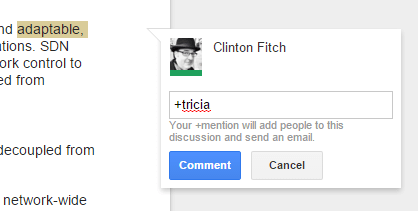
Before I get to the changes that Google announced on the Android apps, let’s first talk about the changes to the web version of Google Docs.  Now you can instantly add a comment when you

Google Docs for Web Comments

Google Docs for Web Comments

highlight a piece of text.  When you highlight that text, on the right you will now see a comment bubble pop up.  Click on it and add your comments about that portion of the text.  Want to add someone to collaborate on the document, just start typing in their name and it will popular their email address in the comments and will send them an email notifying them.  They can then add comments to the document too, bringing teams together in a more efficient way as everyone is working from the same, literal, page.

Now let’s turn to Android.

How To Change Your Chrome OS Development Channel

Yesterday afternoon I posted about the release of the latest build of Chrome OS.  This new build started rolling out to all devices yesterday and has a lot of great features and improvements in it.  The reality for me however is that I have been using the 48-build series for a couple of weeks now as part of the Chrome OS beta program.  Like any other beta program, this one allows me to download a beta version of the OS to my Chromebook and see new features as well as help the Chromium team with bugs.  It’s a bit of a win-win.

The good news is, as far as Google and the Chromium team are concerned, anyone can join the beta program.  With a simple change on your Chromebook or Chromebase, you can move from the normal Stable channel to the Beta channel so you too can get these beta builds before they hit the Stable channel.

In this How To I’ll show you how to set your Chrome OS device to the Beta channel and the process for reverting back to the Stable channel.  Before I do however, a word of warning.  They call the channel Beta for a reason folks.  You are very likely to run into bugs or other weirdness if you move to this channel.  The goal of the channel is not to give you access to new features first but for you to provide feedback to the Chromium team on bugs or issues that you run into while using the release.  Beta programs only work when those using the software actually report bugs.  So if you are willing to do so and willing to live with a bug or two, sign up.  If however you can’t make the time commitment to report bugs or your Chromebook is mission critical, don’t get in on the Beta channel.

Okay, onward to the How To.

Massive Google Hangouts Update Rolling Out Now

This afternoon Google began pushing out a big update to Google Hangouts, their SMS & IM app for Android.  The update brings the app to version 7 and this is one that all users will want to get and try out.  Perhaps the biggest new feature is one that many Hangouts users had requested:  The ability to do Quick Replies.

Everyone pause for a moment and soak in the glory.

Now on the Notification Shade, you can do a quick reply to a message and send it.  It saves you from having to open up the Hangouts app and makes replies, especially while you are on-the-go (but not driving… because driving and Hangouts don’t mix).  There is nothing you need to do to enable the feature.  It will be automatically started for you after you upgrade to this new version.

Google Drops The Price of The Nexus 5X Again

For the second time in three weeks, Google has dropped the price of the Nexus 5X.  Back on January 12th the company dropped their entry level Nexus phone by $30 and now have lopped off another $50 which brings the 16GB model to just $299.  The 32GB model has also dropped by $50 and is now $349.  For the specifications of the device, that is an excellent price and you will have Android Marshmallow already on the device.  Plus, as we all know, Nexus devices get Marshmallow updates first and faster than anyone else.

Nexus 5X – 16GB – $299 / 32GB – $349

Google Play Games Dropping Google+ Requirement

Over the weekend on the Android Developers Blog, Google announced a significant change is coming this year to Google Play Games.  To this point, if you played a game on your Android device and signed into the service, it required you to have a Google+ ID to do so.  It created a multi-step process for users and is a bit of a hold over from when Google tried to push everyone and everything through Google+.  At some point this year, Google is going to eliminate this requirement and gamers will be able to sign in one time per account and any new games they start playing, they will be automatically signed into the service.

We’re taking steps to reduce sign-in friction and unnecessary permission requests for players by moving the Games APIs to a new model. The new interaction is:

  • Players are prompted to sign-in once per account, rather than once per game

  • Players no longer need their account upgraded to Google+ to use Play Games services

  • Once players have signed-in for the first time, they will no longer need to sign in to any future games; they will be automatically signed in

  • Note: Players can turn off auto-sign-in through the Play Games App’s settings

It is certainly going to make it much easier for players to sign into the service, especially on new games where they can just get to playing immediately without having to go through the whole sign in process repeatedly.

Google Pushes New Look Weather in Google Now

Google has pushed their new look weather information sheet to Google Search and Google Now for Android Phones.  You may have heard about this in recent weeks as Google has been experimenting with it and had pushed it out to some users.  Today via a post on the Google Inside Search blog, it was announced and rolled out to everyone.  You can access it several different ways.

First, you can use Google Search on your Android phone and search for your local weather or weather in another city.  Second, you can tap the weather panel in Google Now and get it for the city you have configured in the app.  Third, you can use “OK Google” to use phrases like “What is the weather outside?” or “What is the weather in Denver?” to get the new card.  Once you do get to it, there is a huge amount of information on the sheet and frankly, it’s pretty awesome.

%d bloggers like this: