Category: Google

Google Play Music To Host Podcasts Soon

Yesterday’s news of Google Play Music now offering ad-supported streaming music in Canada was certainly welcome news.  But at the end of that announcement there was a passing mention around podcasts.

We thought that would be awesome, so today we’re announcing that we plan to start offering podcasts on Google Play Music, giving podcasters access to millions of new listeners on Android phones and tablets.

Now this in itself isn’t new.  Google announced this same thing when they launched the streaming service here in the US.  In fact, it is the exact same language. Interestingly however, as I researched this last night (after building my Fi Lego set of course), there is surprisingly little information on this or when it will be coming to Google Play Music.  The one clear thing that is known is that content is needed and if you have a podcast you want to offer up then it is time to get registered with Google on it.

Chrome for Android Update Brings Lots of Fixes

Over on the Chrome Releases Blog, the announcement has come that an updated version of the browser is coming to Android.  The update should be hitting the Google Play Store over the course of the next few hours which means it will start coming to devices via an OTA update soon thereafter. The updated version is 47.0.2526.27 for those keeping score at home and it falls in line with the announcement on Monday of version 47 for the desktop version of Chrome and Tuesday of ChromeOS.

As for what has been updated or changed in this update, it is as Google describes “a barge load of performance and stability fixes”.  If you really want to dig into the GIT information you can see all the fixes in the release but it is a long, long list.

Chrome for Android – Free – Download Now

Google Play Music Free Streaming Comes To Canada

For those of us in the United States, we have had Google Play Music ad-supported streaming music for months.  Unfortunately for our friends north of the border in Canada, that has not been the case.  While the app has been available, it has not allowed you to stream audio content other than what you have uploaded to the service unless you subscribed to the unlimited service.  That changes today.  Now Canadians can stream music in Google Play Music on their Android phones and tablets free without having to subscribe.

Google Contacts & Google Phone Apps Released

As a Nexus 6 user, I have enjoyed using Google Contacts for managing my contacts and Google Phone as my dialer since Day 1.  These are, after all, the default apps that come on Nexus phones as well as several others.  Now everyone can uses these apps if they chose as the company has rolled them out as standalone apps in the Google Play Store.   I would say that this has been a long time coming.

Google began rolling out standalone versions of many of their apps at the beginning of this year and that has continued throughout 2015.  It is all part of an effort by the company to provide a “Google experience” through their apps and not simply mark them for Nexus use only.  Indeed I wrote on this very subject back in July and I firmly believed then as I do now that this is part of the larger strategy that will bring additional success with Android to Google.  Key to that is the fact that they can roll out updates like these today without requiring a new build of Android – or carrier involvement in that process. You can read why Google apps are so important to the future of Android at this link.

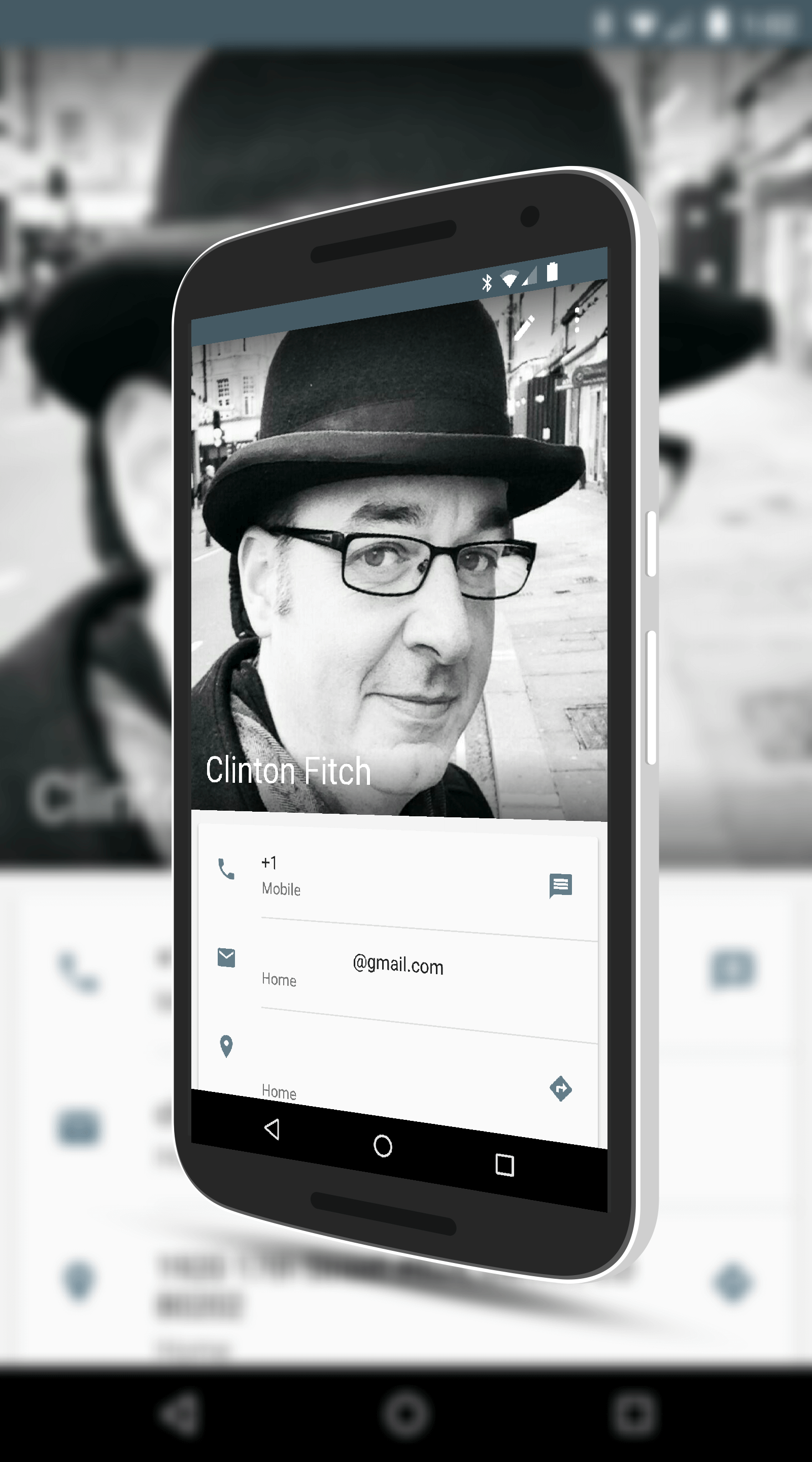
Google Contacts is a solid contacts manager

The updated version of Google Contacts is 1.3.07 for those keeping score and while the big news is the standalone distribution of the app, there are also some nice tweaks and improvements in the

Google Contacts for Android

Google Contacts for Android

release too.  The editing of contacts is now a bit more streamlined and you won’t have to do as many taps to add information or edit existing information.  It’s not a big change mind you but it is a change that long time users of the app will appreciate.  There are also a fair number of bug fixes and other improvements in performance to the app.

Fundamentally Google Contacts is much like any other contacts manager so those of you who are new to the app, don’t expect a lot of bells and whistles.  It gives you what you need and it is a solid performing app like many of the other Google apps.  Perhaps more importantly though, you will get to experience what Google really had in mind when they came out with these and Android.

Google Contacts is free in the Google Play Store.


Chrome Updated With Latest Security Fixes

Today the Chrome team has announced the release of Chrome 47 to the stable channel, the latest update to the browser on Windows, Mac and Linux.  The update brings with it some 41 security fixes that range from critical to low impact.  Ultimately if you are a user of the browser, you will want to get this update ASAP.  It should come to you OTA but you can always force the issue by going to Settings>About in Chrome and it will go look for the update for you.  For those who are curious or like to keep version score numbers at home, this build is 47.0.2526.73 m on PCs.

In all, the update addresses 1 Critical update, 13 High priority updates, 6 Medium priority updates and 3 Low priority updates.  Generally speaking, severity of a security flaw is determined by number of users impact, potential data exposure and other factors.

More on Project Fi Wi-Fi Calling

One of the benefits of being a Project Fi subscriber is the ability to place and receive calls over Wi-Fi.  Wi-Fi call is nothing new and Google certainly wasn’t the first with this minute savings feature.  But what Google has done with Project Fi is make it seamless – so much so that unless you look at your phone during a call, you may not even know you are using Wi-Fi for that conversation. Even better, if you start a call on Wi-Fi and your signal drops (or you leave the building), your call is handed over to the cellular network so you can keep talking.

I mentioned Wi-Fi calling in my review of Project Fi, which you can read at this link.  Earlier this week I also posted an overview of how Open Wi-Fi works on the service which would be a good read too as it is somewhat foundational to this article.

How Does Project Fi Determine When to Place a Call on Wi-Fi

At it’s core, Fi is always looking for Least Cost Routing (LCR).  This is a common term used in Unified Communications & Collaboration and what it means is that your Nexus device will always be looking for the lowest cost way to make a solid, reliable call.  To do this, a lot of things are taken into consideration.  What is the quality of your cellular signal?  What is the quality of your Wi-Fi signal?  How stable are these connections?  Taking all of this into consideration, when you start a call, Fi uses this information to determine which path to use that will meet the least cost criteria but also provide you the best quality of call.  So, for example, if both Wi-Fi and Cellular are available but the quality of the wireless connection is spotty, Fi will use the cellular path to make the call.

You may be asking yourself, “Why bother with Wi-Fi calls if the minutes on Project Fi are free?”.  That’s a great point but think about it from a call quality perspective, not just a cost perspective. If you are in an area where the cellular coverage is weak at best but you happen to be in a coffee shop with outstanding Wi-Fi, why not leverage that for a call?  That’s somewhat how Fi looks at the world of getting your call completed.  From the cost perspective, even though the minutes on Fi are free to you, they are not free to Google.  Any time they can off load a call to free Wi-Fi, it benefits them but ultimately us as users as well as it allows Google to keep costs low and thus our monthly subscriptions low.

More On Project Fi Open Wi-Fi

Last week I posted my review of Project Fi, Google’s MVNO service that I have been using with my Nexus 6 the past two months.  If you haven’t had a chance to read the review yet, you can do so here.  The bottom line is I’m quite pleased with the service and don’t see myself switching to a traditional carrier any time soon.

One aspect of my review mentioned but didn’t cover in detail the Open Wi-Fi concept.  For those of you who read my Project Fi review, this seems to be one of the question marks still in the air based on your emails and comments so I thought I would address it in a separate post.  Ultimately this Open Wi-Fi solution is a key part of Fi and to get the full advantages of the service, you need to be able to leverage it when it is available to you.

What is Open Wi-Fi in Project Fi

By definition, Open Wi-Fi is exactly how what it sounds like when you read it.  It is open wireless networks that your Project Fi enabled phone can access automatically through the use of the Wi-Fi Assistant that is built into Nexus devices running Android Lollipop or Android Marshmallow.  Google has certified that these networks are open, fast and reliable so you should have no problem performing calls on Wi-Fi and of course can easily consume data for surfing, email and the like.

To get this to work, you have to have to have enabled Wi-FI Assistant on your device.  Without it, the game stops right here.   To enable it, you need to go to your Google Settings.  You can either access this via the Google Settings app or, if you are running Android Marshmallow, you can access it by going to Settings>Google>Networking.  From there, make sure that you have enabled “Use open Wi-Fi automatically”.

Google Maps Star Wars Fun For Everyone

Last week Google rolled out what they are calling the Star Wars Experience.  If you go to http://www.google.com/starwars, you can sign yourself up for either the Light Side or Dark Side and when you do, you get all kinds of cool Star Wars related stuff in your Google Services like Gmail backgrounds, Chromecast backgrounds and there is even an official Star Wars app that gets you the latest news and information on the upcoming movie.  One of those apps that joins in the fun is Google Maps and it is in a subtle but fun way.  If you are on the Dark Side, you will get a Star Destroyer for your home location and for work, you get an Empire Transport Ship.  Geeky?  Absolutely.  Fun?  Absolutely.

By-the-way, if you want to return all your Google stuff back to normal, it is easy to do so.  Just go the Google Star Wars link above, chose Change Sides then move your avatar back to the neutral position between the sides and click Back to Default.  Now everything is back to normal.

To get this overlay on Google Maps to work, you have to first chose a side on the Star Wars link.  Next, within your Google account, if you have not done so already, you need to configure your Home and Work locations.  You can do this from your Android phone by going to Google Maps, opening the menu and tapping My Locations.  Now you are ready for some Star Wars fun!

%d bloggers like this: